

How To Set Im Driving On Iphone
Starting with iOS 11, Apple introduced a Do Not Disturb While Driving Feature that's designed to mute incoming calls, texts, and notifications while you're driving to cut down on accident-causing distractions.
Do Not Disturb While Driving is not a feature that's enabled automatically, but you will see a popup prompting you to turn it on when Apple detects the motion of a car after installing iOS 11 or later for the first time. Despite the notification, you'll still need to choose how you want to use the feature if you miss the initial setup process.
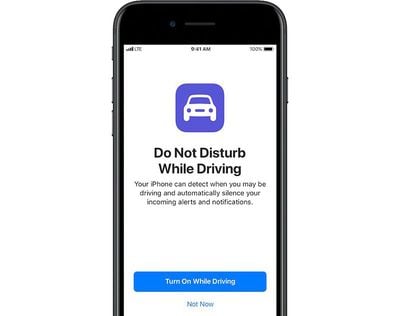
Do Not Disturb can be set to turn on manually, automatically when the iPhone detects a car's acceleration, or when an iPhone connects to a car's Bluetooth.
Enabling Do Not Disturb While Driving
- Open the Settings app.
- Tap Do Not Disturb.
- Scroll down to "Do Not Disturb While Driving."
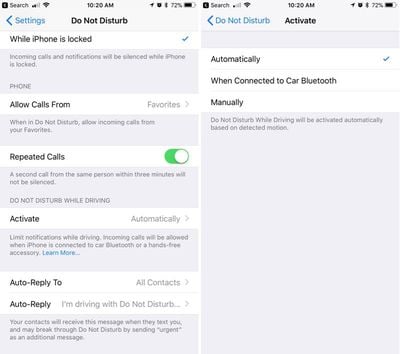
- Tap on "Activate" to choose how you want Do Not Disturb While Driving to be turned on. If you don't want to use Do Not Disturb While Driving, set it to manual.
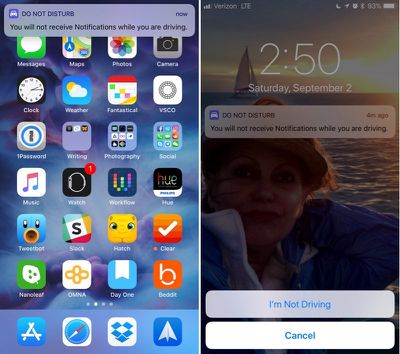
Whenever Do Not Disturb While Driving is activated, you'll see a bar at the top of the screen letting you know incoming notifications are being muted.
Do Not Disturb While Driving Control Center Toggle
If you don't want to have Do Not Disturb While Driving turn on automatically but still want to use it, there's a Control Center setting for activating it.
- Open the Settings app.
- Choose Control Center.
- Select Customize Controls.
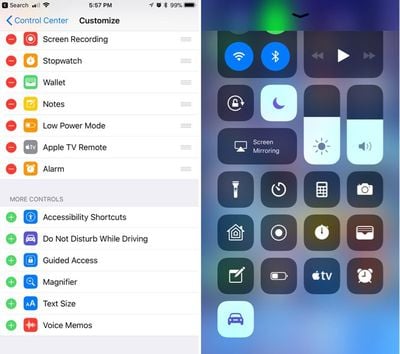
- Add Do Not Disturb While Driving, which has an image of a car.
This adds the Do Not Disturb While Driving toggle to your Control Center. To turn it on or off, you just need to swipe to open the Control Center and tap it.
If You're a Passenger
When the automatic setting is enabled, Do Not Disturb While Driving will turn on whenever your iPhone detects the acceleration of a vehicle. This can be inconvenient if you're a passenger, so you'll need to turn it off through the Control Center or by tapping the persistent Do Not Disturb While Driving popup at the top of the display to let Apple know you're a passenger.
Choosing Your Auto Reply Options
When you're driving, all of your incoming text messages are muted. You can choose an automatic text message that lets people know you're in the car and will text later, and you can customize who sees the message.
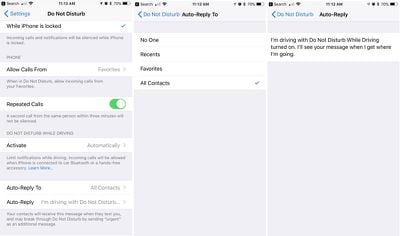
- Open the Settings app.
- Choose Do Not Disturb.
- Scroll down to "Auto-Reply To" and tap it.
- You can choose for automatic texts to be sent to Recents, Favorites, All Contacts, or No one, if you would rather not have your phone send automatic replies.
Customizing Your Auto Reply
- Open the Settings app.
- Choose Do Not Disturb.
- Scroll down to "Auto-Reply" and tap it.
Apple sets a default message in this section, but you can change it to say whatever you want. This is the message people will receive when texting you when Do Not Disturb While Driving is enabled.
If there's an urgent issue and someone needs to get in contact with you immediately, they can break through Do Not Disturb While Driving by texting you "urgent." This will override your Do Not Disturb settings and will notify you of the text immediately.
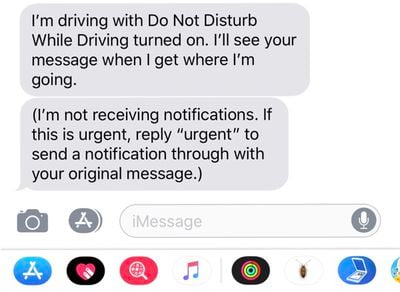
An ideal setup is to set auto replies to your favorites, which likely translates to close friends and family. This will let them text you in an emergency situation, but will prevent other less urgent messages from being a distraction.
Phone Calls
If your iPhone is connected to your car's Bluetooth system, iOS is smart enough to know you have a hands-free calling method available. In this situation, calls will continue to come through even when Do Not Disturb While Driving is enabled. Texts and notifications from apps will continue to be muted, though.
If you're not connected to Bluetooth and have no hands-free accessory, calls will be blocked like text messages and notifications.
Parental Restrictions
For parents of teenagers, there's an option to enable a restriction that will prevent Do Not Disturb While Driving settings from being changed or toggled off, guaranteeing children are using the feature whenever they're in the car. Here's how to turn it on (iOS 12 or later):
- Open the Settings app.
- Choose Screen Time.
- Tap on Content & Privacy Restrictions.
- Tap on the Content & Privacy Restrictions toggle to turn on restrictions.
- Scroll down to Do Not Disturb While Driving and tap it.
- Choose Don't Allow.
On devices running an earlier version of iOS, there are different steps to follow to access device restrictions. Open the Settings app, choose General, scroll down to Restrictions and then tap it. Enter your passcode and then find the "Do Not Disturb While Driving" option and choose "Don't Allow Changes."
Related Stories
There's No Windows for Arm Macs Yet Because Microsoft Has Secret Exclusivity Deal With Qualcomm
Monday November 22, 2021 12:56 pm PST by Juli Clover
Microsoft has declined to make a version of Windows 11 available for Apple's M1, M1 Pro, and M1 Max Macs that are built on an Arm architecture, and now we may know the reason - a secret exclusivity deal with Qualcomm. Subscribe to the MacRumors YouTube channel for more videos. According to XDA-Developers, Arm-based Windows has only been made available on devices with Qualcomm SoC's because of ...
Spotify Users Growing Impatient and Canceling Subscriptions Over Lack of Native HomePod Support
Monday November 22, 2021 10:39 am PST by Sami Fathi
Spotify users are growing impatient with the music streaming giant over its lack of HomePod support, pushing several customers to the brink of canceling their subscriptions entirely and moving to alternative platforms, such as Apple Music. More than a year ago, at the 2020 Worldwide Developers Conference, Apple announced that it would be adding third-party music service support to HomePod. A ...
Apple Black Friday: AirPods Pro With MagSafe Drop to All-Time Low of $159 ($90 Off)
Update November 23: This deal is now also available at Amazon. Black Friday is officially in full swing this afternoon, with the launch of one of the first major discounts at Walmart. There you can get Apple's AirPods Pro with MagSafe Charging Case for just $159.00, down from $249.00. Note: MacRumors is an affiliate partner with some of these vendors. When you click a link and make a...
Black Friday: AirPods Pro With MagSafe Hit Lowest Ever Price
Apple's AirPods Pro with the new MagSafe Charging Case is now available for its lowest ever price thanks to Black Friday sales. Note: MacRumors is an affiliate partner with some of these vendors. When you click a link and make a purchase, we may receive a small payment, which helps us keep the site running. The limited-time deal is available at both Amazon and Walmart, which are both...
iMessage Reactions Will No Longer Annoy Android Users Thanks to Emoji Change
Monday November 22, 2021 1:44 pm PST by Juli Clover
Last Friday, code suggested Google would soon roll out an update for Google Messages that would display iMessage Reactions from iPhone users as emoji on Android devices, and now that update has started rolling out. Screenshots from 9to5Google reader Jvolkman According to 9to5Google, some Android users are beginning to see iMessage reactions in Google Messages as emoji that are linked to the...
Black Friday: AirPods Pro With MagSafe Drop to $159 on Amazon
Amazon is now matching Walmart's price on the AirPods Pro with MagSafe, available for $159.00, down from $249.00. These are shipped and sold directly from Amazon, and in stock now. Note: MacRumors is an affiliate partner with some of these vendors. When you click a link and make a purchase, we may receive a small payment, which helps us keep the site running. Stock may begin dwindling soon, ...
How To Set Im Driving On Iphone
Source: https://www.macrumors.com/how-to/do-not-disturb-while-driving-ios-11/
Posted by: usherseentacts.blogspot.com
0 Response to "How To Set Im Driving On Iphone"
Post a Comment